Airports and the flight pickup buffer
Every airport a flight job can pass through has a record here: where its cargo facility is, the agent who handles freight there, the fees and processing time, and how much notice a flight needs before it is worth offering.
Before you start
Section titled “Before you start”Airport records mostly need touching for one of two reasons: the details of the cargo facility or agent changed, or flights are being offered too soon after booking to be catchable — which is what the buffer is for.
- Go to .
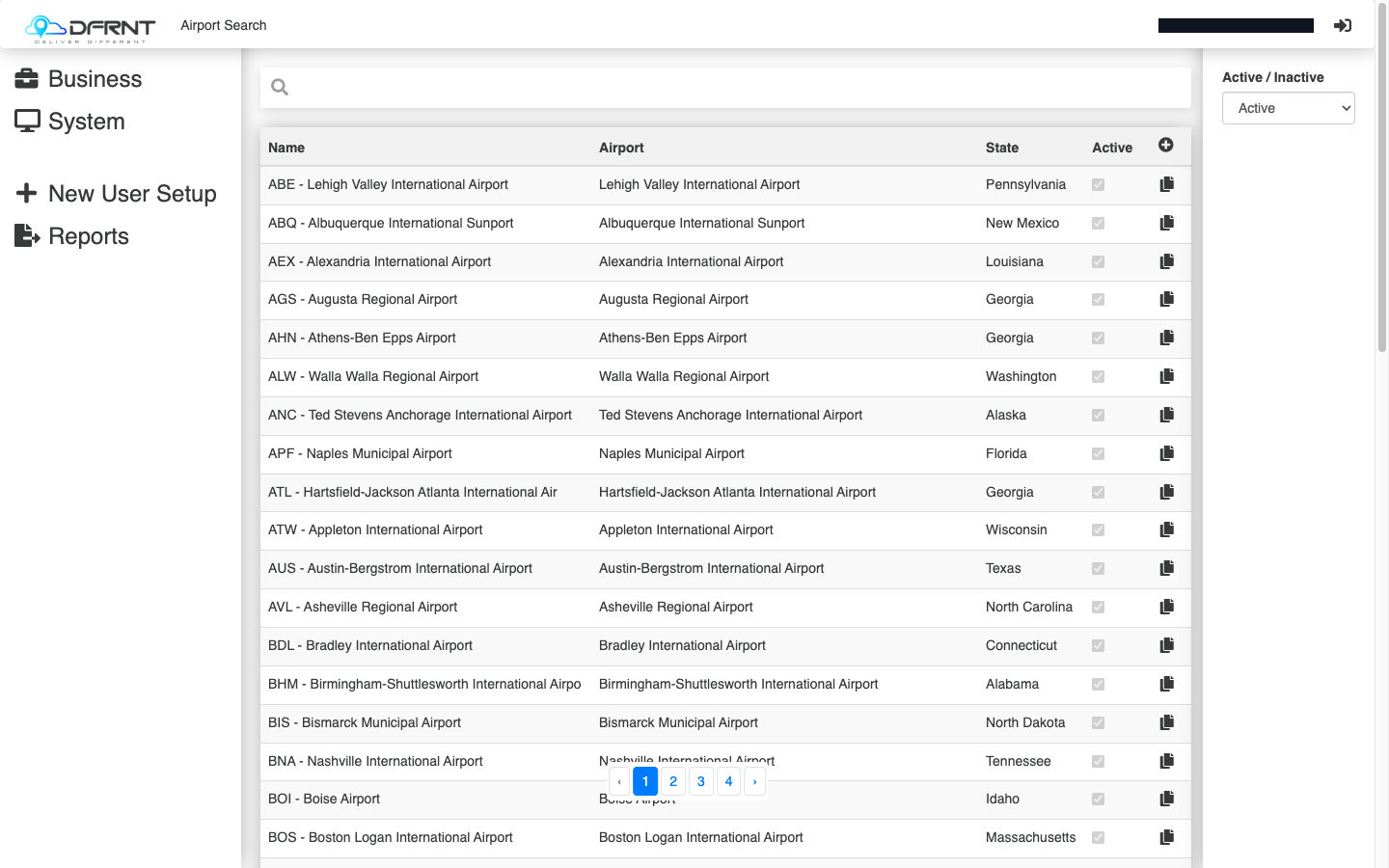
- Find the airport — the search screen lists Name, Airport, State and Active, with an Active/Inactive filter — and click its row. The + and per-row copy controls add new records.
 3. On the General tab:
- Name and Code — how the airport appears elsewhere.
- The address block — street address, unit or building, city, zip code and state, with a GPS view.
- Cargo Facility Fee and Processing Time — the cost and handling time at that airport.
- Flight Buffer Minutes — the lead time a flight needs before it is offered against a booking. Raise it if flights are being suggested that freight cannot realistically make.
- Agent — who handles the freight at this airport.
- Active — whether the airport is in use.
- Press SAVE.
Good to know
Section titled “Good to know”The buffer is the field that answers the everyday complaint — “why is it offering a flight that leaves in half an hour?” It is set per airport, so a change fixes one airport, not all of them. The airport’s Agent is also why agent records carry per-airport vehicle rates — the two screens describe the same relationship from opposite ends.
If something goes wrong
Section titled “If something goes wrong”Flights are offered that can’t be made. The buffer on that airport is too short for its real handling time.
No flights are offered at all for an airport. Check the airport is Active here before investigating anything else.
Related
Section titled “Related”- The Domestic screen — where flights are assigned to jobs
- Admin Manager overview
Internal: how this page was verified draft
- Checked by
- kenneth on 2026-09-24
- How
- ui-walkthrough
- Where
- staging · dfrnt-shared · logged in as internal-staff
- Against
- ui: re-walked 2026-09-24 on the baseline (DFRNT shared staging — DFRNT organisation confirmed in the org switcher; internal-staff session; read-only) — System > Flights holds Airports, Carriers, Flight Delays; Airport Search columns Name, Airport, State, Active with the Active/Inactive filter; a record has General / Cargo Facilities / Edited tabs with fields Name, Code, Street Address, Unit/Flat/Floor/Building, City, Zipcode, State, GPS (View), Extra Info, Type, Cargo Facility Fee, Processing Time, Flight Buffer Minutes, Agent, Active, Rates Table; Cargo Facilities carries Carrier, Opening Time, Closing Time
- ui: Admin Manager > System > Flights > Airports, walked 2026-09-01 — the Flights group also holds Carriers and Flight Delays; search screen has Name, Airport, State, Active columns, an Active/Inactive/Both filter, an add control and per-row copy
- ui: an airport record opened and read 2026-09-01 — tabs General / Cargo Facilities / Edited; fields Name, Code, Street Address, Unit/Flat/Floor/Building, Suburb, Postcode, Site, GPS (View), Extra Info, Type, Cargo Facility Fee, Processing Time, Flight Buffer Minutes, Agent, Active, Rates Table
- Likely to change
- high — Flight handling is under active development, and the screen is reached through the older menus, which are being phased out — both the readers of these values and the path to this page are moving.
- Re-check by
- 2026-10-15
- Config-dependent
- 1 item(s) called out on this page
- Screenshots
- 1 still to capture
- Open questions
- The exact effect of Flight Buffer Minutes — the retiring help docs say it is the minimum number of minutes between the booked time and the first flight offered; confirm by watching the flight list on the Nationwide screen.
- What Processing Time and Cargo Facility Fee feed into — pricing, scheduling, or both.
- What the Cargo Facilities tab holds — it was seen, not opened.
- What the Carriers and Flight Delays screens in the same group are for.
- Create and save were not exercised (read-only walk).