Set up vehicle sizes
The vehicle sizes set up here are the choices a booker sees under Vehicle on the booking form — with the capacities that decide what fits, and a couple of charges that follow the vehicle.
Before you start
Section titled “Before you start”Know the vehicle’s capacities — cubic, pallet and weight. They are usually entered once, when the size is created, and rarely touched again.
- Go to .
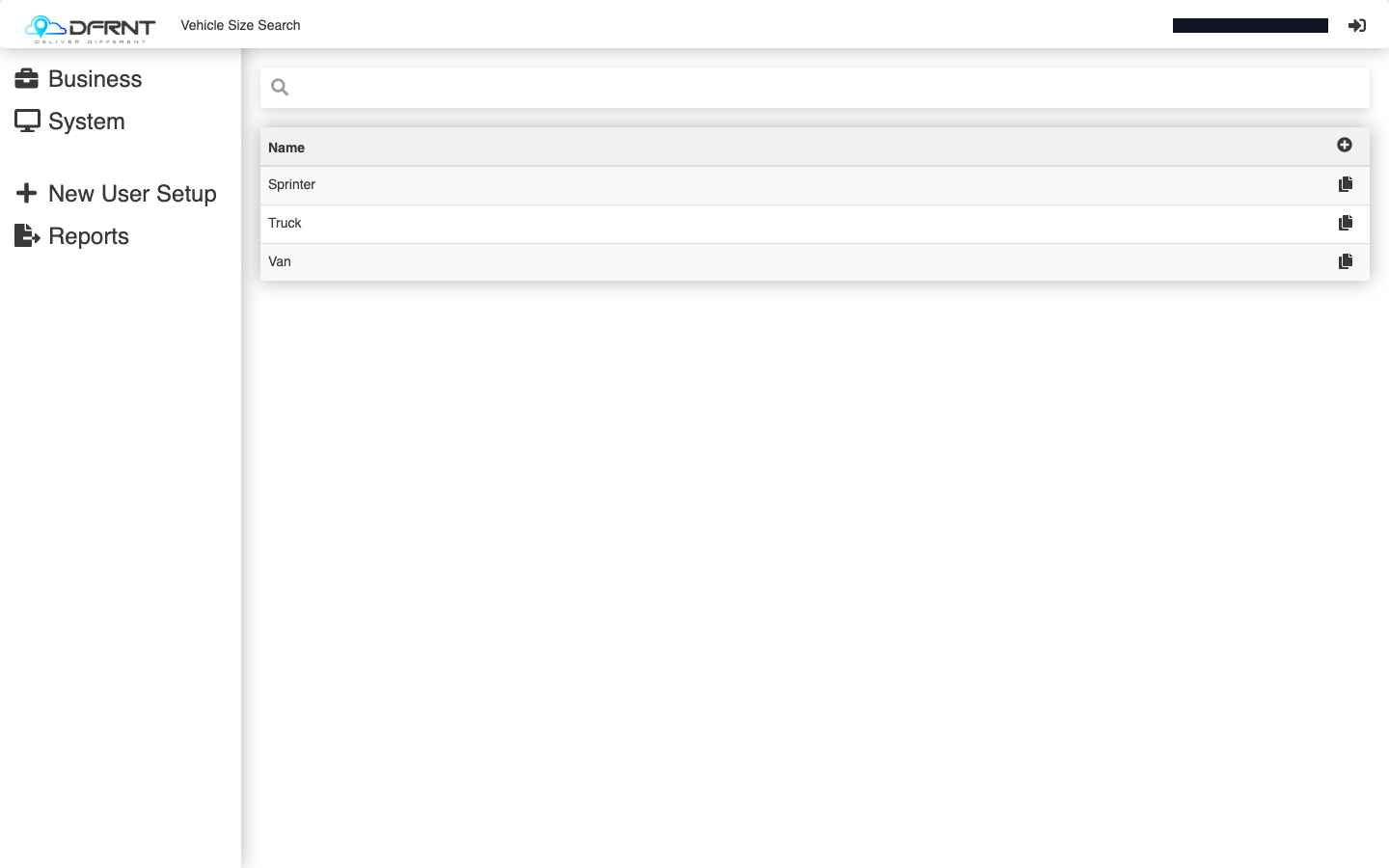
- You will see the list of existing sizes. To change one, click its row. To add one, use the + control above the list; the copy control on a row starts a new size prefilled from an existing one.
- Fill in the General tab:
- Name — what the booker sees on the booking form.
- Cubic Capacity, Pallet Capacity, Weight Capacity — what it can carry.
- Vehicle Type — the kind of vehicle, from a fixed list (hatchback, motorbike, pushbike, sedan, station wagon, SUV, truck, ute, van).
- Client — leave empty for a size everyone can use; see the open questions on this page before relying on it for anything else.
- Driver Fuel Percentage — the fuel figure tied to this vehicle.
- Default for Booking Page — tick on the size the booking form should preselect.
- Press SAVE. CANCEL discards; DELETE removes the size.
Congestion charges
Section titled “Congestion charges”Each size record carries a Congestion Charges tab. A charge is added per client and state, with a Base Charge and a Driver Rate — for places where operating that vehicle costs extra.
Good to know
Section titled “Good to know”This list and the booking form are the same thing seen from two sides: add a size here and it becomes bookable; the Default for Booking Page tick decides where the form starts. The Edited tab shows recent changes to the record.
If something goes wrong
Section titled “If something goes wrong”A vehicle is missing from the booking form. It does not exist here, or it is tied to a different customer. Check the list first.
The wrong vehicle is preselected on bookings. Another size carries the Default for Booking Page tick.
Related
Section titled “Related”- Book a job — where these sizes appear
- Admin Manager overview
Internal: how this page was verified draft
- Checked by
- kenneth on 2026-09-24
- How
- ui-walkthrough
- Where
- staging · dfrnt-shared · logged in as internal-staff
- Against
- ui: re-walked 2026-09-24 on the baseline (DFRNT shared staging — DFRNT organisation confirmed in the org switcher; internal-staff session; read-only) — list, record fields (incl. the Vehicle Type list, Client, Driver Fuel Percentage, Default for Booking Page), General / Congestion Charges / Edited tabs and the congestion fields Client, State, Base Charge, Driver Rate all match; the booking form's Vehicle dropdown lists exactly the sizes configured here
- ui: Admin Manager > System > Vehicle Management > Vehicle Sizes, walked 2026-09-01 — search screen (Name column, add control, per-row copy) and a record opened and read
- ui: record fields — Name, Cubic Capacity, Pallet Capacity, Weight Capacity, Vehicle Type (Hatchback, Motorbike, Pushbike, Sedan, Station Wagon, SUV, Truck, Ute, Van), Client, Driver Fuel Percentage, Default for Booking Page; tabs General / Congestion Charges / Edited; EDIT, SAVE, CANCEL, DELETE controls
- ui: Congestion Charge dialog fields — Client, State, Base Charge, Driver Rate
- ui: cross-checked 2026-09-01 — the Vehicle dropdown on the booking form lists exactly the sizes configured here
- Likely to change
- high — The screen itself looks settled, but it is reached through the older menus, which are being phased out — the path on this page is expected to move.
- Re-check by
- 2026-10-15
- Config-dependent
- 2 item(s) called out on this page
- Screenshots
- 1 still to capture
- Open questions
- What the Client field does precisely — the retiring help docs say it restricts a size to one customer, but that effect has not been observed. Confirm before asserting it in prose.
- How Driver Fuel Percentage interacts with fuel profiles — the field was seen; the calculation was not traced.
- What a saved Congestion Charge does downstream — the dialog was read, no charge was added.
- Create and save were not exercised (read-only walk); confirm required fields by saving a test size.